
Poster Studio Stamps and Layers
Build posters from layered stamps, change size and rotation, and use layer tools without confusing the canvas with the stamp menus.
FAQ
How do you move between the canvas and menus?
How do moving, scaling and rotation differ?
How do you move between the canvas and menus?
The canvas is the central placement area. SL and SR switch the color and stamp menus; the Bottom Button returns to the canvas. Right Button places a stamp in the documented controller layout. Start with one recognizable stamp so you can observe the selected mode before building a complicated composition.
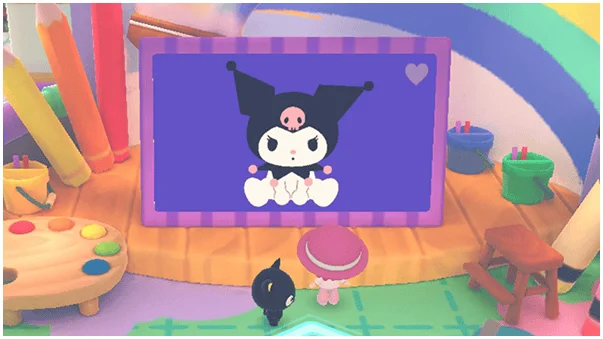
How do moving, scaling and rotation differ?
Bottom Button enters movement mode. Top Button changes to scaling, then free scaling, where horizontal and vertical stick movement change width and height separately. Left Button enters rotation, then coarse rotation. In coarse mode the rotation uses fifteen-degree intervals; do not mistake that snapping behavior for a broken free-rotation control.
What can the layer menu fix?
Layers can be selected, copied, reordered and deleted, including movement to the top or bottom. The menu also restores the last deleted layer and includes color-copy tools. When a stamp appears to vanish, inspect the overlap order before placing it again. Use the page and Sketchbook tools for whole pictures rather than confusing them with individual layers.
Related guides
Related Articles
activities
Board Games and Difficulty-Based Targets
Compare Blooming Flower Festival, Tropical Twilight and Sparkling Neon Night, including Medium-only delivery targets and how days end.
activities
Board Spaces and Route Planning
Recognize shop, challenge, item and map-specific spaces before risking your flowers, droplets or sparks on a detour.
activities
Melody Cake: How to Play Music and Use Catalogs
Create percussion and melody on cakes, connect matching patterns and organize music across four catalogs with sixteen cakes each.
Was this helpful?
Thanks for the feedback!